

The great thing about Google Sheets is that it will automatically update and share across any platform. This is a great alternative way to keep track of your budget electronically. To make a budget in google sheets follow the steps below!
First, if you are not set up with a google email you will want to do that. Once you’ve set up an email search google for google sheets or click on the link to be transferred to it.
Start by opening a blank document and typing out the information below. (Make sure to enter the information into the same cells as you see in the photo below as it will help with instructions in the final step.)

Next we will want to add some color, to tell what goes where. To do this highlight the box you want to color, find the paint icon in the toolbar and pick your color. I suggest picking the preset colors, because it will help with next step.
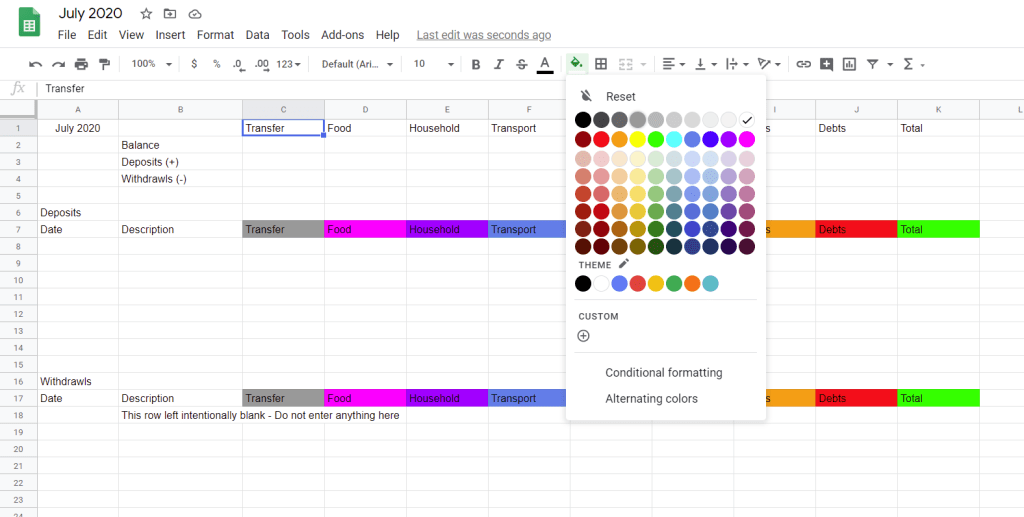
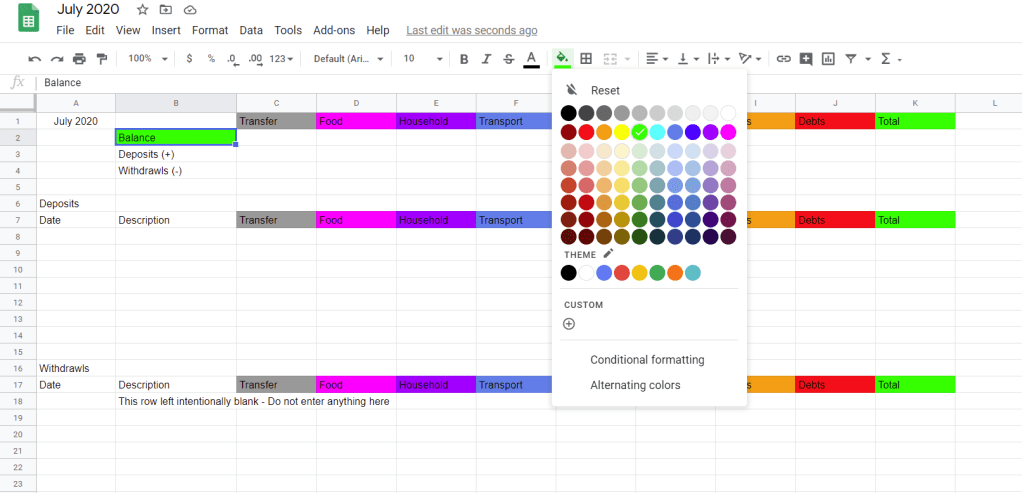
Set a faded color, just below the preset photos to go beneath each color you chose.
(*Note: In the Withdraws category I set faded colors from row 19 to row 80.)
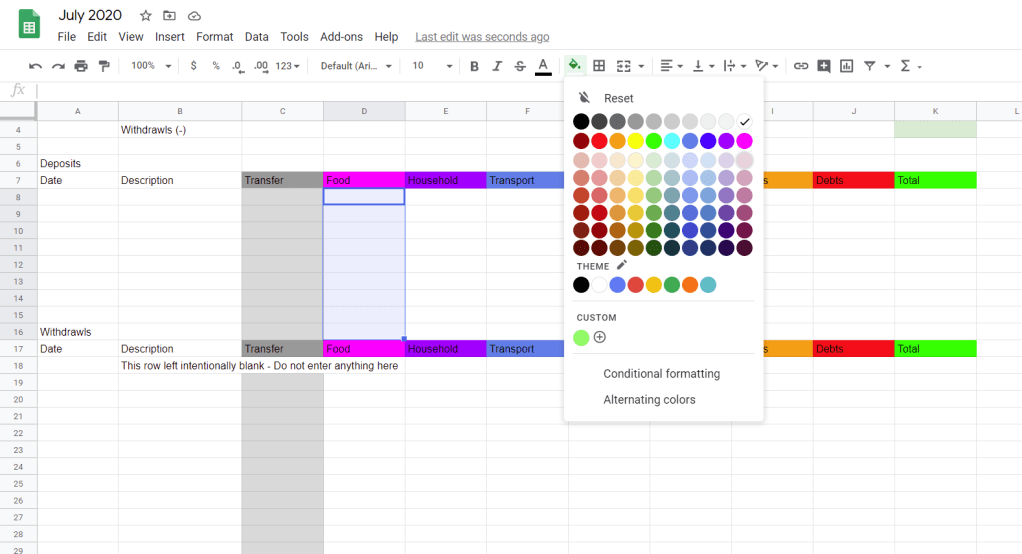
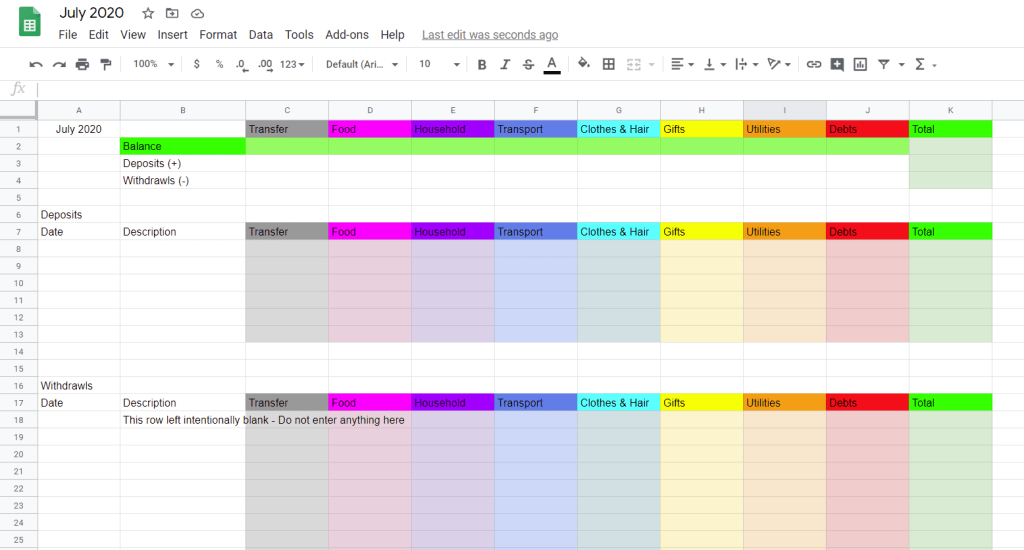
First we need to highlight all the empty cells that are lightly colored and change them to the currency setting. This way any time you type a number in the cell, it will automatically change to currency. To do this highlight the area you want to change to currency and click on the $ Icon. It’s between the zoom icon and the percentage icon.
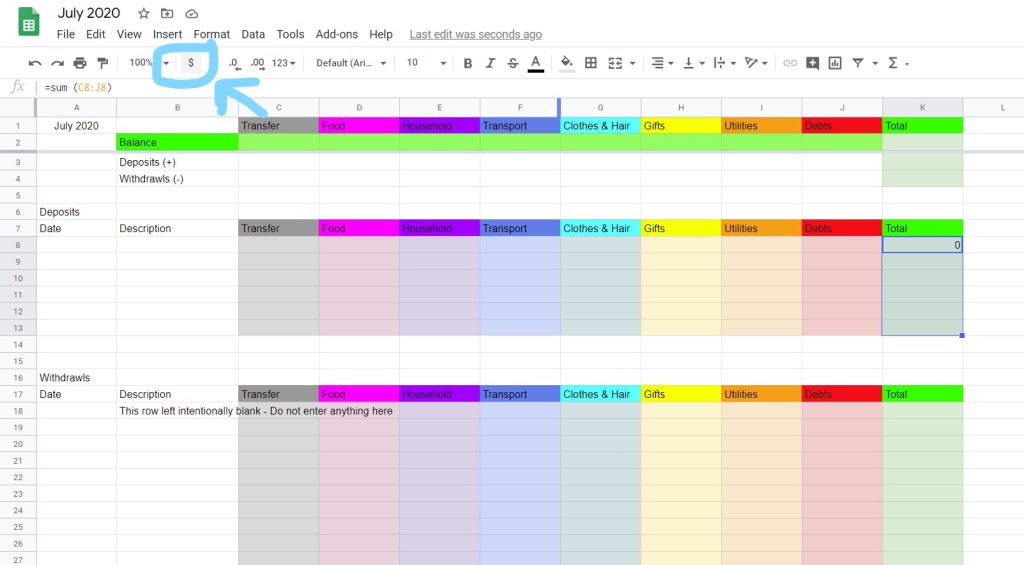
Before we move on to making formulas I like to freeze the top 2 rows so I can always see how much money is in each of my accounts even if I’ve scrolled down really far. This setting allows you to always see how much you have. To add this setting click on the view tab, freeze, top 2 rows.

Okay, Now that we have the budget designed, we need to make it work. The goal of this budget is to enter what you’ve spent in the withdraws category and have it total up how much money you have left in each of your separate categories, and in your account overall.
To do this we will start by creating formulas in google sheets! First click on the box below total on the deposits category. Enter in =SUM( at this point click and drag your mouse from Cell C8 all the way to Cell J8 End the entry with the other side of your parentheses and hit enter. The formula should look like this =SUM(C8: J8)
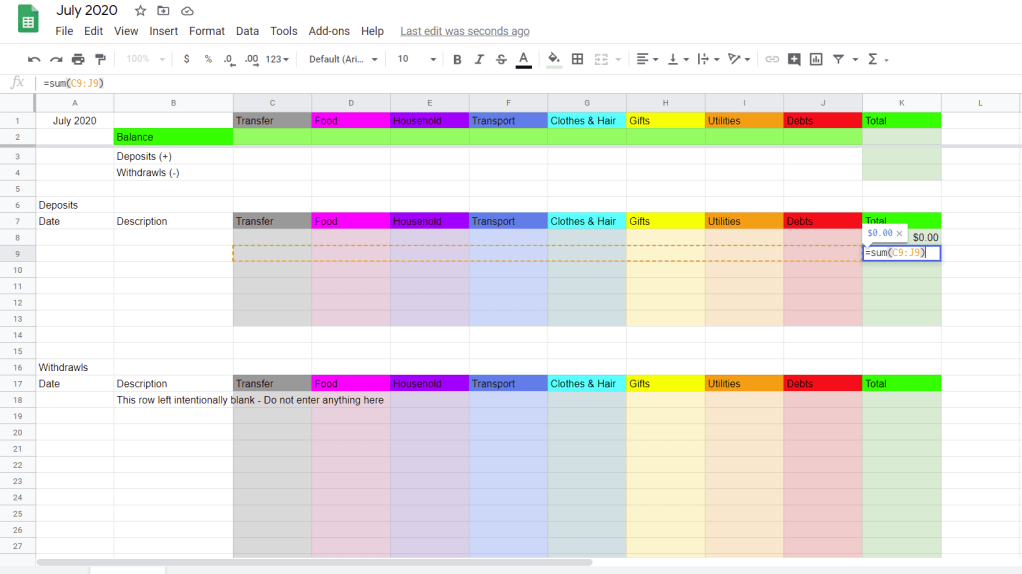
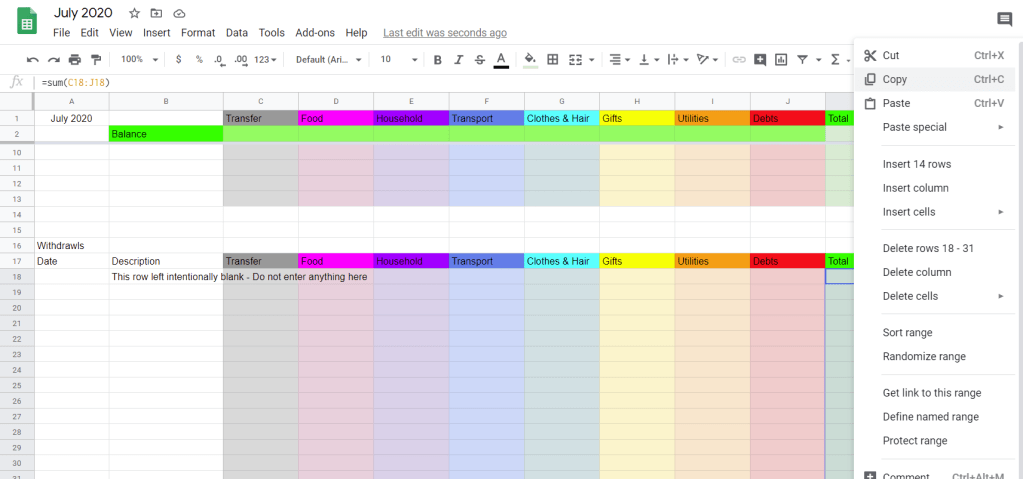
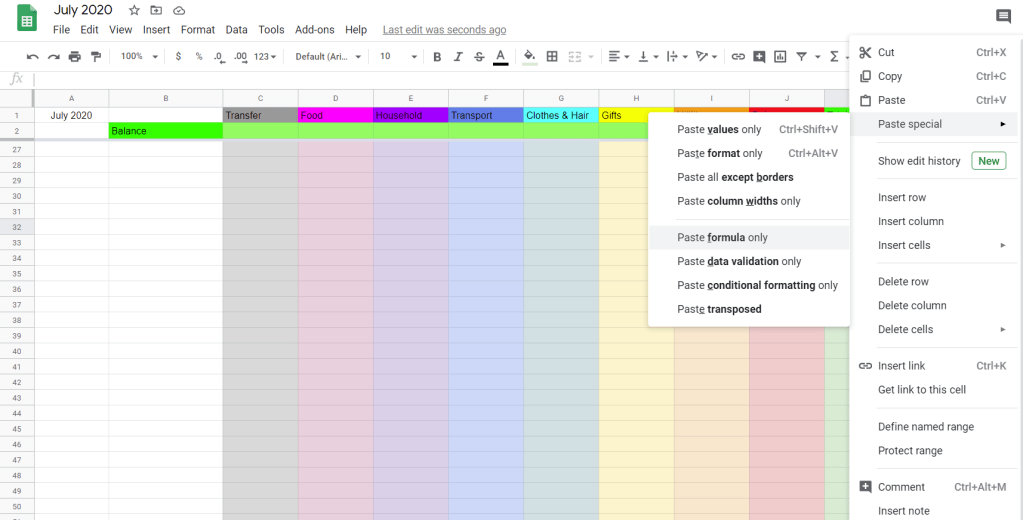
Copy this cell box you just created, and “paste formula only” throughout all the cells under Deposit, and Withdraws. For the paste you will want to use “Paste Special” and then click on Paste formula only. If you skip this step your formula wont work! This makes it so that all of your other cells follow the same rule as the first.
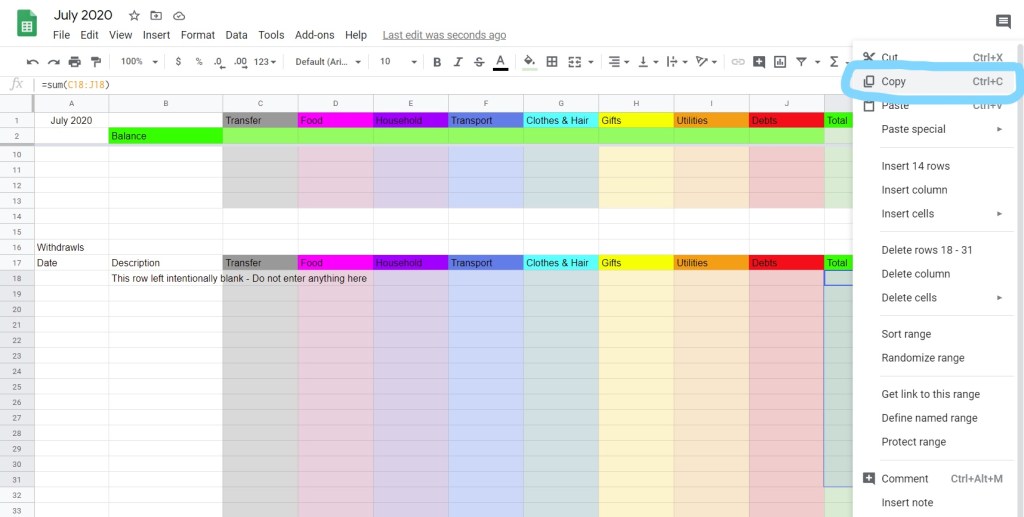
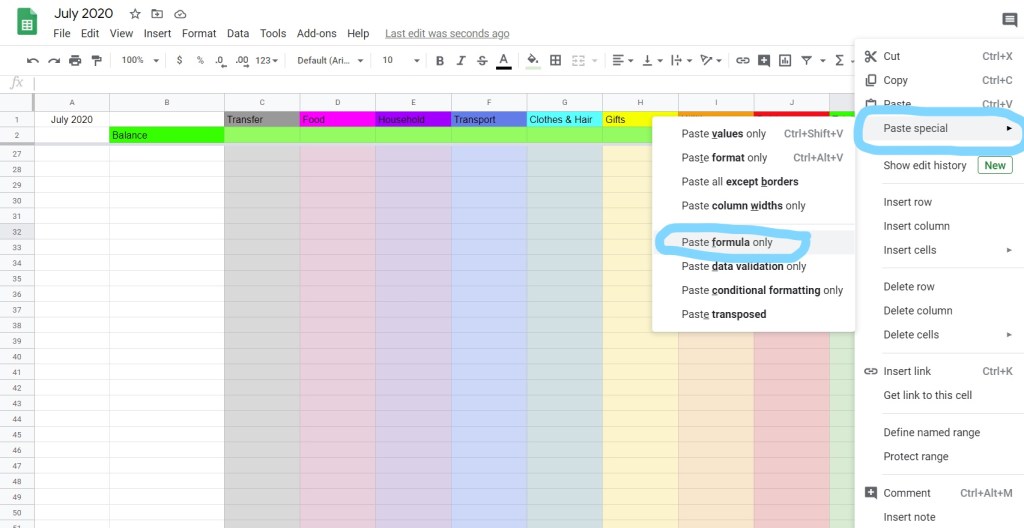
Here is an example of the same thing but under deposits instead of withdraws.

We now want to format the total deposits and withdraws to subtract and give us the total amount in each category. To do this start in Cell C2. Type in the formula =( at this point click on cell C3 then enter a minus symbol and click on cell C4. All together your formula will look like =(C3-C4)
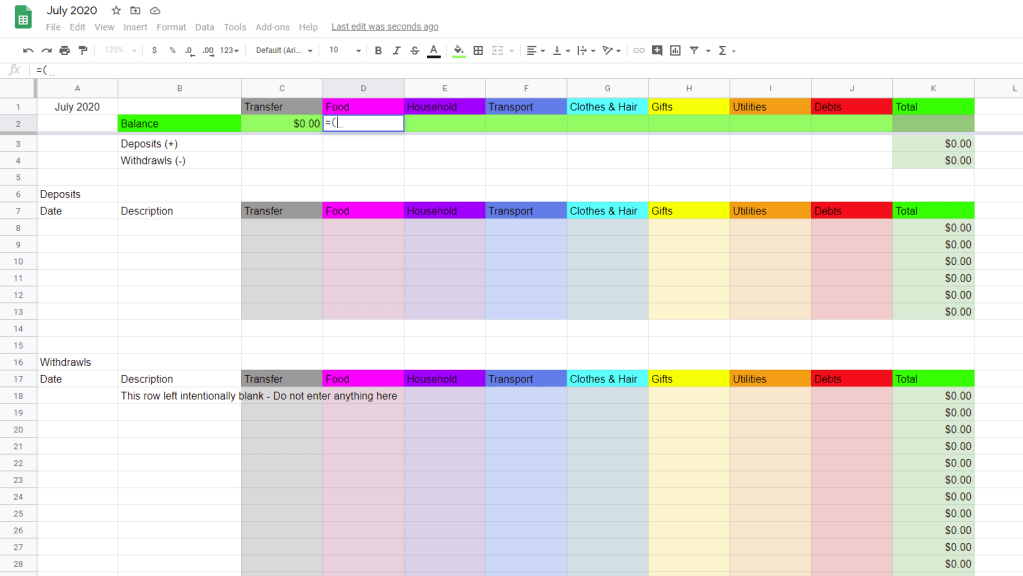
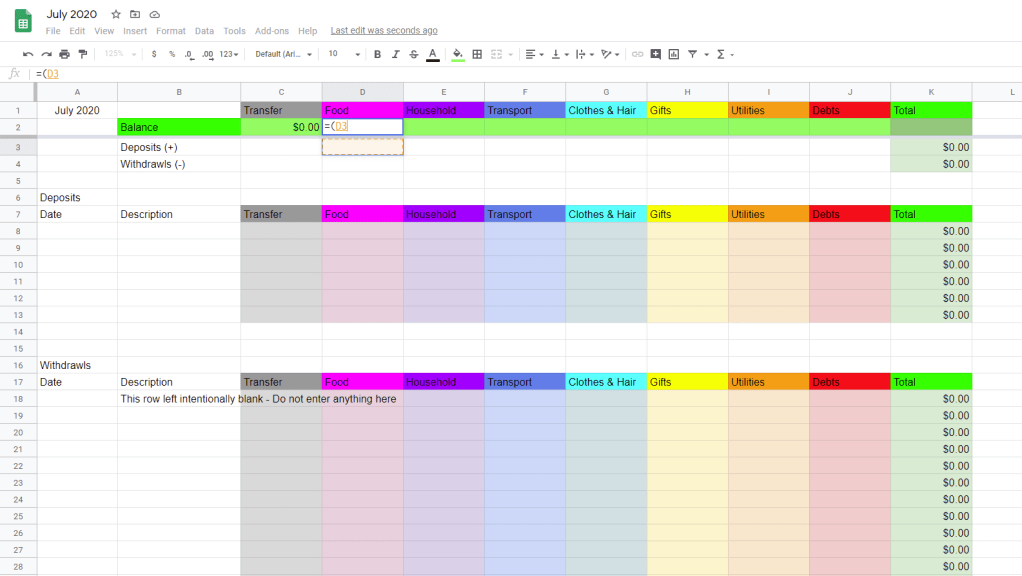
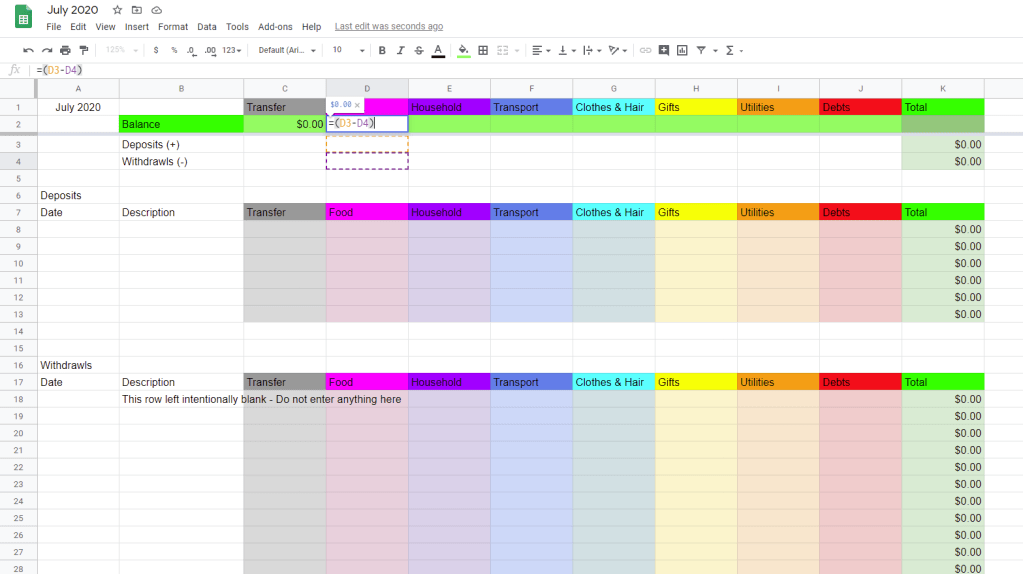
Copy this formula and “Paste Special, formula only” in cells D2 through J2.

In Cell C2 we want the total of all deposits in the “transfer” column. To do this enter the formula =SUM(C8:C13) in the same way as before. Copy this formula and “Paste Special, formula only” into cells D3 through J3.
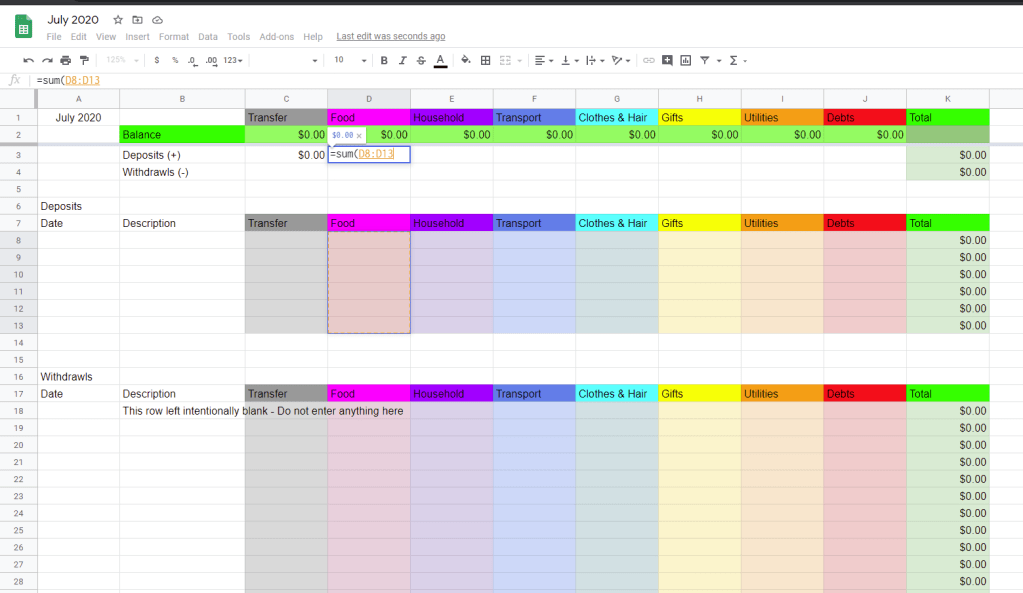
In Cell C4 we want the total of all withdraws in the “transfer” category. To do this enter the formula =SUM(C19:C80) Copy this formula and “Paste Special, formula only” into cells D4 through J4.

This is what your google sheet should look like so far.

Now we need the total of all of the categories in “balance” to see what our overall balance in the bank account is. To do this click on cell K2 and enter the formula =SUM(C2:J2)

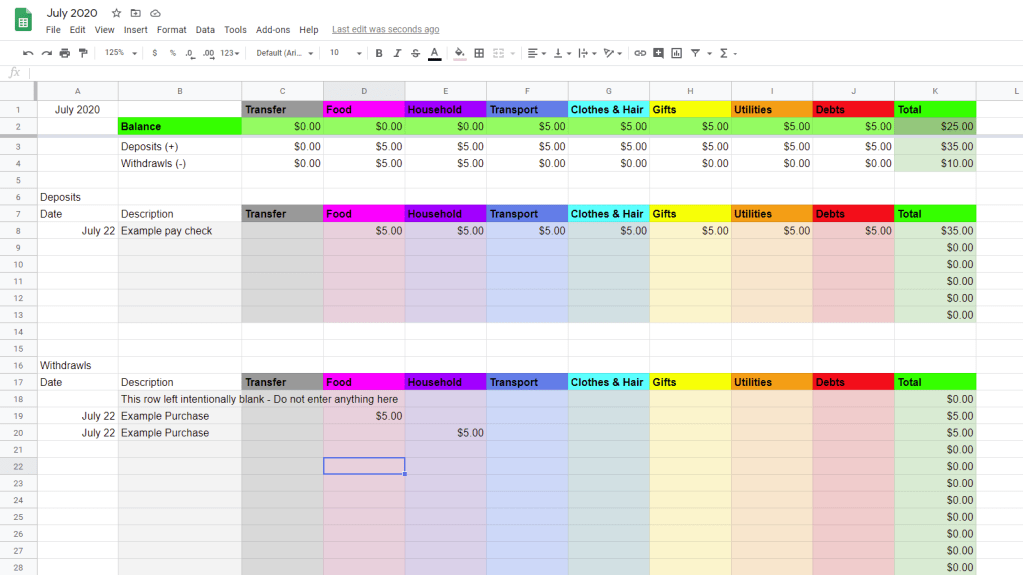
Do a quick test to make sure everything is working. You will now be able to enter in your pay check into deposits and anytime you make a withdraw from your bank account enter it into google spreadsheets and it will tell you how much money you have left in each category.
This is what it should look like when you’re done.
Using Google sheets for budgeting is extremely helpful for keeping you conscious of how you are spending your money and where you are spending it. There are apps you can install that will automatically do this work for you, however, I find that manually entering in my costs every week keeps me more accountable of where my money is going.

Dates with a newborn – Looking at fall leaves
Most newborns fall asleep as soon as they ride around in a bit in a car. Take that to your advantage for a great date night. Prep work: Print off a personality test for both you and your spouse. Grab a clipboard and pen so you can take the test together. Prepare all the things…


How to make a simple budget for Christmas
Determine how much you need to save There are two ways you can determine how much you need to save for Christmas. One, is by using my general rule to save 1 percent of your yearly take home pay. For example, if you make 50,000 dollars a year that means you need to save up…

How I lived comfortably working part time minimum wage.
I had a roommate that came up to me one day and asked, “How do you manage to seem so calm? We make the same amount of money, pay the same amount of rent, and yet you never seem to be worried about money.” And the truth was, I wasn’t worried about money. I was…
 Juggling The Jungle